Connect to IBKR with Python
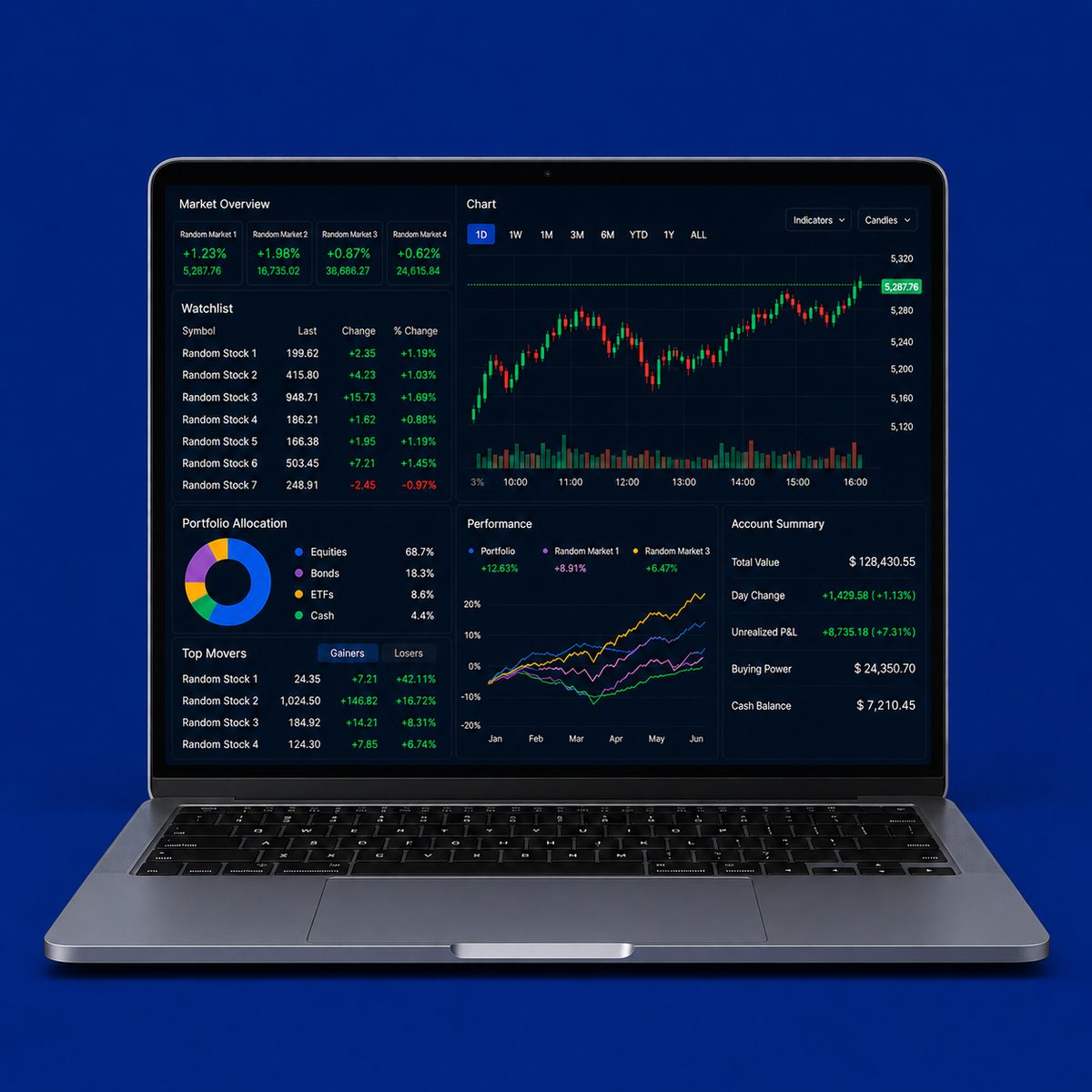
Python can download a year of daily Apple prices from an Interactive Brokers (IBKR) account into a pandas DataFrame, a table in Python.
The connection runs through Trader Workstation. Your Python code sends requests to Trader Workstation on your computer, and Trader Workstation passes them to IBKR.
I make the connection with ib_async and use a paper account, which trades simulated money, and its default port, 7497, throughout. The same code runs against a live account when Trader Workstation is logged into the live session and the connection uses the live port, 7496.
The code requires Trader Workstation to be open and logged in, so I show the code without running it when this page is built. Every request in this tutorial is read-only.
What you end up with
- A Python connection to an IBKR paper account
- Daily bars for a stock, in a pandas DataFrame
What you need
- An IBKR account with a paper-trading login
- Trader Workstation installed and logged into the paper account
- Market-data subscriptions for the stock on the live account, shared with the paper account. Without them, the historical request may return no bars or a subscription error.
- Python with
ib_asyncand pandas:pip install ib_async pandas.ib_asyncis the maintained successor toib_insync, andutil.df()needs pandas to build a DataFrame.
Step 1. Importing and connecting
IB() creates the object Python uses to communicate with Trader Workstation. ib.connect(...) opens the connection: host tells Python where Trader Workstation runs, port selects the session, and clientId identifies the connection.
In a Jupyter notebook, add util.startLoop() so the notebook can continue running while it waits for replies from Trader Workstation. Leave this line out in an ordinary .py file.
from ib_async import IB, Stock, Forex, util

util.startLoop()          # let ib_async use the notebook's event loop (Jupyter only)
Before connecting, open Trader Workstation in paper mode and enable the API: Configure, then API, then Settings, then Enable ActiveX and Socket Clients. Note the socket port, 7497 by default for paper trading. Leave Read-Only API enabled, which blocks orders submitted through the API.
ib = IB()
ib.connect(
    "127.0.0.1",        # the computer running Trader Workstation
    7497,               # the socket port set in Trader Workstation
    clientId=1,
    readonly=True,      # Trader Workstation is in read-only mode
)
ib.reqMarketDataType(3) # allow delayed data when live data is unavailable
7496 is the default port for live trading, and IB Gateway defaults to 4002 for paper and 4001 for live. The address 127.0.0.1 means the same computer, where Python and Trader Workstation both run. Whichever application and session you use, the port in the code must match the socket port set inside Trader Workstation. clientId can be any non-negative integer, as long as it is unique among the connections Trader Workstation has open at once.
Step 2. Downloading the price history
First, identify the stock. Stock("AAPL", "SMART", "USD") means Apple shares in US dollars, using IBKR’s SMART routing. ib.qualifyContracts(aapl) matches this description to IBKR’s exact contract. The request asks for one year of daily prices, and util.df(bars) converts the returned bars into a pandas DataFrame.
aapl = Stock("AAPL", "SMART", "USD")   # the contract: which instrument
ib.qualifyContracts(aapl)               # fill in IBKR's official contract details

bars = ib.reqHistoricalData(
    aapl,
    endDateTime="",             # empty means up to now
    durationStr="1 Y",          # how far back
    barSizeSetting="1 day",     # one bar per trading day
    whatToShow="ADJUSTED_LAST", # closes adjusted for splits and dividends
    useRTH=True,                # regular hours only
)
df = util.df(bars)              # the bars as a pandas DataFrame
The result has one row per trading day, with the date, open, high, low, close and volume.
whatToShow="ADJUSTED_LAST" adjusts prices for splits and dividends, and "TRADES" adjusts for splits only, so use ADJUSTED_LAST for return calculations.
reqMarketDataType(3) tells Trader Workstation to return delayed data when live data is unavailable. IBKR describes historical data as available to its market-data subscribers, so selecting delayed data may not be enough for a historical request. A linked paper account can also share the live account’s subscriptions. The historical request above returned bars on my paper account. If yours returns no bars or a subscription error, check the account’s market-data subscriptions.
If the DataFrame part is new, Lesson 15 of Python for Investing covers how one is put together, and Lesson 16 does the same for prices read from a file.
When you are finished, close the connection.
ib.disconnect()Limitations
Paper trading is still a simulation. A paper account’s order fills are simulated, so it tests code and logic but does not reproduce slippage, the gap between the expected price and the price a trade gets, or execution quality.
Trader Workstation or IB Gateway must stay running. Python connects through one of these applications. If the application closes, logs out, or restarts, the connection drops.
Connecting is only the start. A DataFrame shows that the download succeeded, not whether a strategy will make money. Order types, costs, sizing, currencies and execution are separate problems.
IBKR is one of four routes to price data. How do I get market data into Python? compares them and says which one fits which question.
Conclusion
The takeaway is that Python reaches IBKR through Trader Workstation: with the API enabled, the port matched and the session read-only, a few lines download a year of daily prices into pandas.
Read next
- Download stock data from LSEG Workspace in Python Another source I use for daily price history. It downloads the Swedish stocks an LSEG screen returns, active and delisted, into one CSV.
- How to backtest a strategy What to do once the prices are in a table: a momentum strategy run end to end on simulated daily returns, with trading costs charged.
Disclaimer: a getting-started guide on a paper account. No orders are placed. Not investment advice.
Sources: ib_async and its docs; the IBKR TWS API documentation and configuring TWS for the API on IBKR Campus. The older interactivebrokers.github.io TWS API pages are now marked deprecated.